1. PURPOSE
Software Design Description for the Fireball program, version 1.2.0.0.
2. DESIGN DESCRIPTION
2.1. Overview
The Fireball program is a logic game, whose purpose is to logically deduce the location of hidden posts on a game grid, by firing cannonballs into the grid and observing where the cannonballs emerge. Fireball is a dialog-based MFC application, and runs on Windows 95 through XP.
The game grid is laid out as a logical grid in pixels, and placed inside the dialog box window.
Figure
1 – Game board
overview

The basic unit of size in the game board is the constant CELLSIZE (defined in constants.h). This sets the size of one cell in pixels. In this version, CELLSIZE is set to 20 pixels. This is fine for a 640 x 480 or higher resolution display.
The game grid and cannon rows are arrays. The game grid is a square, so only one dimension need be specified. The size of the game grid (in cells) is defined by the constant NUMCELLS, which is set to 10 for a 10 x 10 grid. Each cannon row and column has NUMCELLS cannons.
To simplify drawing of the cannons and game grid, each of these five objects is treated as a two-dimensional array. The top and bottom rows are [1 x NUMCELLS], the left and right columns are [NUMCELLS x 1], and the game grid is [NUMCELLS x NUMCELLS]. This allows the same drawing function to be used to paint all five game objects.
The board, the cannon rows and cannon columns were initially laid out on paper, and the pixel positions calculated and defined as constants in CONSTANTS.H. Since the board cannot change at runtime, this was the simplest method of designing the board layout. The detailed layout is:
Figure
2 – Detailed Game
Board Layout

Each of the (X, Y) coordinates is defined in CONSTANTS.H. In
addition, the entire board is offset in the dialog box window, so that it
appears centered. The offset is defined as an
(OFFSETX, OFFSETY) offset in CONSTANTS.H and is added to the object’s position
when drawing, and subtracted from the mouse coordinate when the mouse is
clicked. That allows all game board operations to operate on the logical
coordinates, rather than the physical coordinates. The entire game board can
then be moved anywhere in the main window by simply changing the values of
OFFSETX and OFFSETY.
2.2. Major Objects
CBoard The game board object. This is a Singleton object. Contains the arrays of cannons and the game grid array. Each array has a structure to define the array’s location, dimensions, and list of BMP images that can be drawn in the cells. Uses an MFC CImageList object to hold the cell images, since they are actually bitmap arrays. The DrawArray() function draws a specific object, and the Draw() function calls DrawArray() for each of the five objects.
CCannonBall The cannon ball itself. This is a Singleton object that is used by CBoard. The object contains functions to move the ball and determine the exit location. The Draw() function draws the entry and exit cannonballs.
CMyBitMap Used to hold and draw the background bitmap. Taken from an MFC book and modified for this purpose. Not the most versatile bitmap class, but it works. The Draw() function draws the bitmap on screen.
CDice A dice object, used in CBoard::InitGame() to generate posts in random locations.
CAboutDialog The About box with the version information.
CFireballDlg The main dialog box object. Created by the App Wizard. The CBoard and CCannonball objects are created in the OnInitDialog() event. The OnPaint() event calls the CMyBitMap::Draw() function to draw the background, then calls the CBoard::Draw() function to draw the board objects, and then calls the CCannonBall::Draw() function to draw the entry and exit cannonballs.
CSound Plays WAV files or resources, given a logical sound name.
CUserInterface Wrapper around CFireballDlg, so that the other classes can access the UI without having to know the details.
CFireballApp The MFC application object. Created by the App Wizard.
2.3. Drawing the Board
The game objects are drawn on screen. Each of the five game objects also has an array of data structures to define the object’s appearance:
struct CellArrayType { // Defines
the type of array and images.
CRect rcLocation; //
Array screen location, normalized to OFFSET.
CImageList imgImages; //
Imagelist for cell BMPs.
int iNumCellsX; //
Number of cells in the X direction.
int iNumCellsY; //
Number of cells in the Y direction.
};
The CBoard object defines the game board, and contains five CellArrayType structures, one for each of the five objects:
CellArrayType cTopRow; // Defines Top row
of cannons
CellArrayType cBottomRow; // Defines Bottom row
of cannons
CellArrayType cLeftCol; // Defines Left
column of cannons
CellArrayType cRightCol; // Defines Right
column of cannons
CellArrayType cBoard; // Defines Game
grid
Drawing a CellArrayType game object is done is a loop as follows (in PDL):
FOR y = 0 to iNumCellsY - 1 DO
FOR x = 0 to iNumCellsX - 1 DO
Draw the image at cell (x, y)
END FOR
END FOR
Basically, the draw function is a raster scan from left to right, then down. The top and bottom rows are [1 x NUMCELLS], the left and right columns are [NUMCELLS x 1], and the game grid is [NUMCELLS x NUMCELLS]. This allows the two cannon rows, the two cannon columns and the game grid to be drawn using the same draw function.
The CellInfoType structure defines the contents of each individual cell in an object array. This allows each cell to have a different appearance:
struct CellInfoType { // Defines
the contents of each cell in an array.
CImageList* pImages; //
Pointer to the imagelist of display BMPs.
int iImageIdx; //
Index of image in list to display.
int iData; //
Data contents of the cell.
};
The draw function will draw pImages[iImageIdx] when drawing a cell. The image list contains the BMP, which is defined as a bitmap resources in the .RC file. Each BMP contains images for that cell. The appearance of a cell is changed by changing the index in the iImageIdx element of the CellInfoType array. Indexes are given logical definitions in CONSTANTS.H, allowing images to be indexed by name rather than number.
The CBoard object also contains five arrays of CellInfoType, such that there is one CellInfoType data structure for each individual cell in each of the five objects:
CellInfoType aTopRow[NUMCELLS];
CellInfoType aBottomRow[NUMCELLS];
CellInfoType aLeftCol[NUMCELLS];
CellInfoType aRightCol[NUMCELLS];
CellInfoType aBoard[NUMCELLS][NUMCELLS]; // Format is aBoard[y][x];
NOTE: Due to the method used to traverse the CellInfoType arrays when drawing, the format for accessing elements of the two dimensional aBoard array is aBoard[y][x].
The CellInfoType arrays and the CellArrayType structure are initialized by the CBoard object constructor. The arrays and structures work together to define and draw the game elements. Each CellInfoType array has a corresponding CellInfoType structure. This makes the final logic for drawing the rows, columns, and board:
CBoard::DrawArray(CellArrayType, CellInfoType)
function:
Start at the first element of the CellInfoType array
FOR y = 0 to CellArrayType.iNumCellsY - 1 DO
FOR x = 0 to
CellArrayType.iNumCellsX - 1 DO
Get BMP image from
CellInfoType.pImages[iImageIdx]
Draw the image at cell (x, y)
Increment the CellInfoType
pointer to the next element
END FOR
END FOR
2.4. Handling the Mouse
When the mouse is clicked, the mouse coordinate is used to calculate which object, and which cell within the object, was clicked. This is more efficient than using a separate command target for each cell. CONSTANTS.H defines macros for calculating index positions in the object arrays, given the X or Y mouse coordinate.
CALCINDEX(axis) calculates the index “n” of the array, given the logical mouse coordinate of the applicable axis (i.e. relative to the logical origin of the board). For example, to determine the X index, call CALCINDEX with the X coordinate of the mouse. Note that if the mouse is not actually within an object, the returned index will either be less than zero or greater than NUMCELLS. A test must be performed to determine if the index is really a valid index.
ISVALIDINDEX(idx) returns TRUE if idx is between 0 and (NUMCELLS – 1), FALSE if not. If TRUE, then the <axis> mouse coordinate that was passed to CALCINDEX() can be used to index an object’s array. However, it still doesn’t identify which object the mouse is in. But it does mean that once the object has been determined, the index can be used to directly index the object’s CellInfoType array.
The CBoard::PointInObject(CPoint) function returns the object that the CPoint was in, or IN_NONE if it was not inside an object.
The general logic for handling the left mouse button is then (in PDL):
CFireballDlg::OnLButtonDown(mouse_location) function:
Normalize mouse_location by subtracting (OFFSETX, OFFSETY)
Calculate the x and y indices for the mouse_location
IF (mouse_location) is inside a CBoard object THEN
Do the mouse click operation for
<object> at cell index (x, y)
Redraw board as needed
END IF
The CBoard::DoMouseClick() function handles the actual work of doing the mouse click operation:
CBoard::DoMouseClick(object, x, y)
SWITCH (object)
CASE click
is any cannon row
Initialize the shot
Set initial direction, entry
and exit cells
REPEAT
Look ahead for posts
IF a post(s) is ahead
THEN
Change ball
direction
END IF
Move ball one cell
Mark cell as appropriate
(tutorial mode)
UNTIL Ball exits grid
CASE click
is in the game grid
Rotate cell image one click,
from <blank> to <X>, to <?>, and back to <blank>
Redraw the board
END SWITCH
The general logic for handling the right mouse button is (in PDL):
CFireballDlg::OnRButtonDown(mouse_location) function:
Normalize mouse_location by subtracting (OFFSETX, OFFSETY)
Calculate the x and y indices for the mouse_location
IF (mouse_location) is inside the game grid object THEN
IF there is a post there THEN
Mark the cell with a post
image
ELSE
Mark the cell as an incorrect
guess
Penalize as appropriate for a
missed guess
END IF
Redraw the board
IF all shots are expended THEN
IF all posts were correctly
placed THEN
You won!
ELSE
You lost!
END IF
END IF
END IF
Note that the game is not checked for a win/lose until a guess is made by right-clicking on a cell. This allows the last shot to be fired and still allow the person to make a guess.
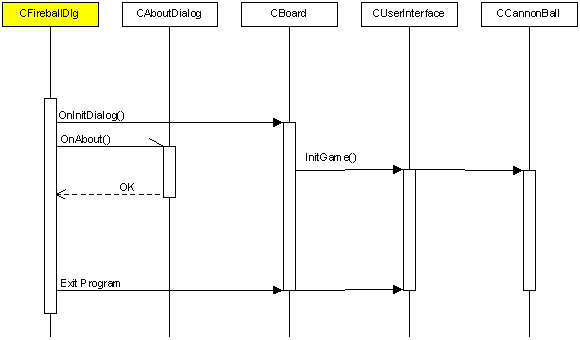
2.5. Class Diagrams
Figure
3 – Class
Definitions

Figure
4 – Class
Relationships

Figure
5 – Sequence
Diagram